

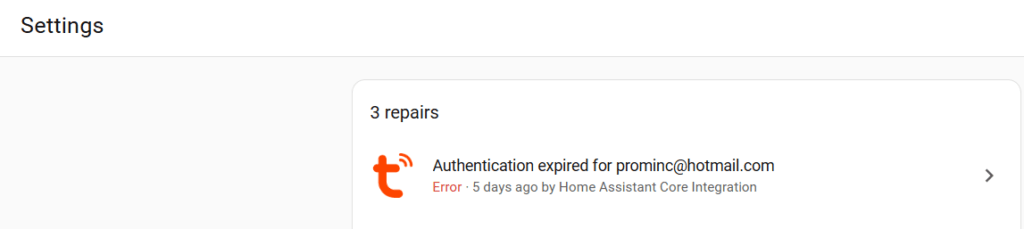
Authentication of Tuya devices within Home Assistant needs to be re-established from time to time. At times though, the experience can be frustrating and blocking. Knowing how to find the right way to solve the problems results in a quick resolution without frustration. Here are some of the top issues that might arise.

Re-Authenticate in Home Assistant with QR code
Overtime, Home Assistant will need to be re-authenticated to Tuya / SmartLife App for the system to work. The process of re-authentication is pretty straightforward – just scan a QR code in the SmartLife app.

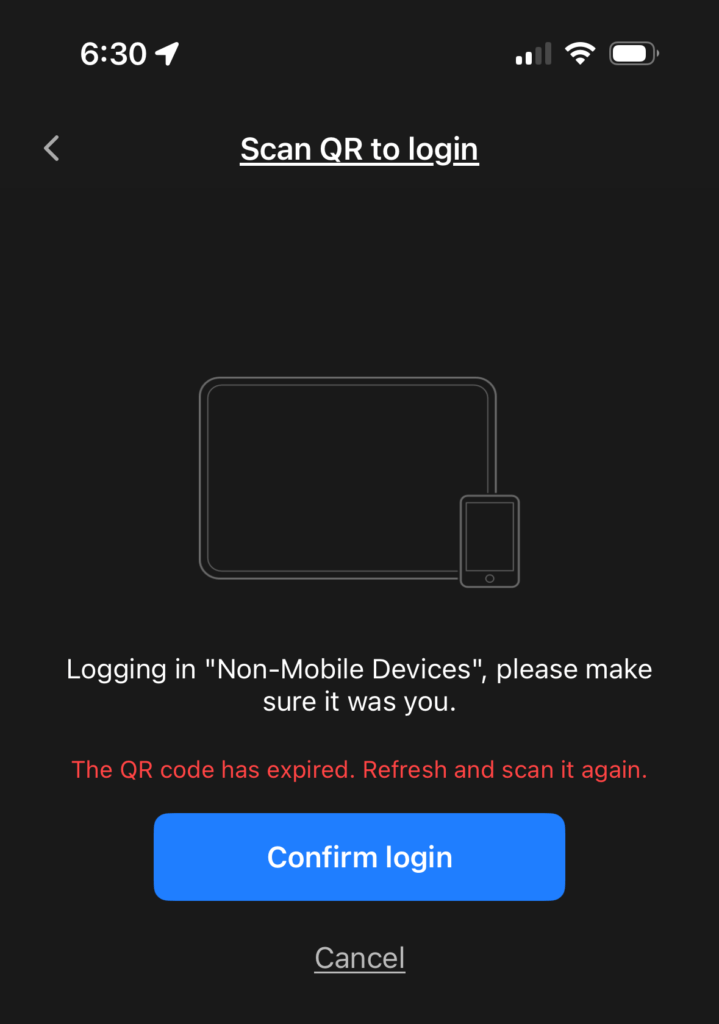
However, by time you get into Home Assistant to do this, the QR code may have expired thus causing the process to fail. So how does one proceed? The QR code just needs to be regenerated. See the steps below.


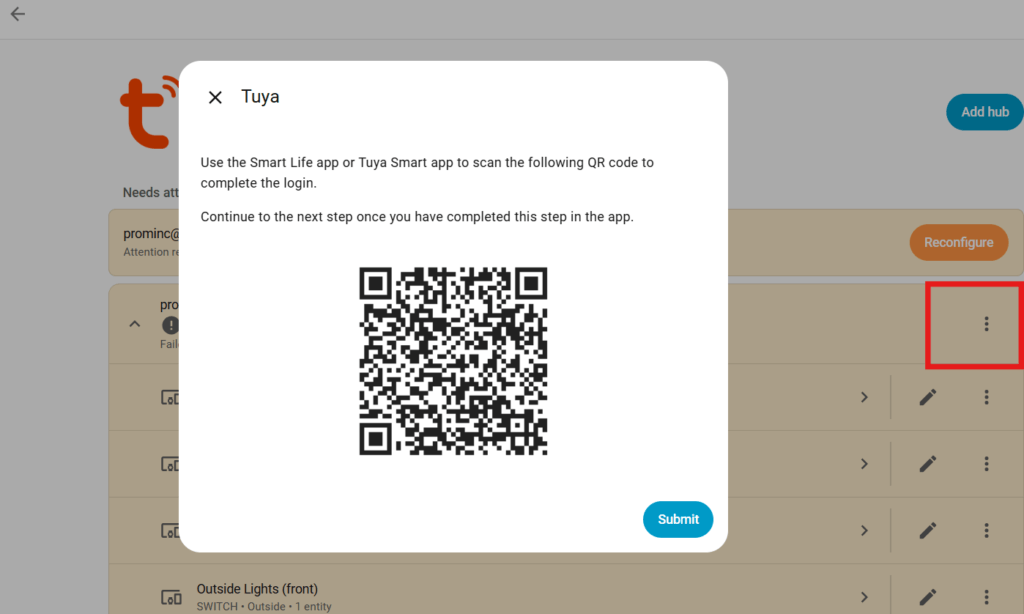
Here are the steps to get the QR code to scan and re-authenticate with the Tuya SmartLife app.
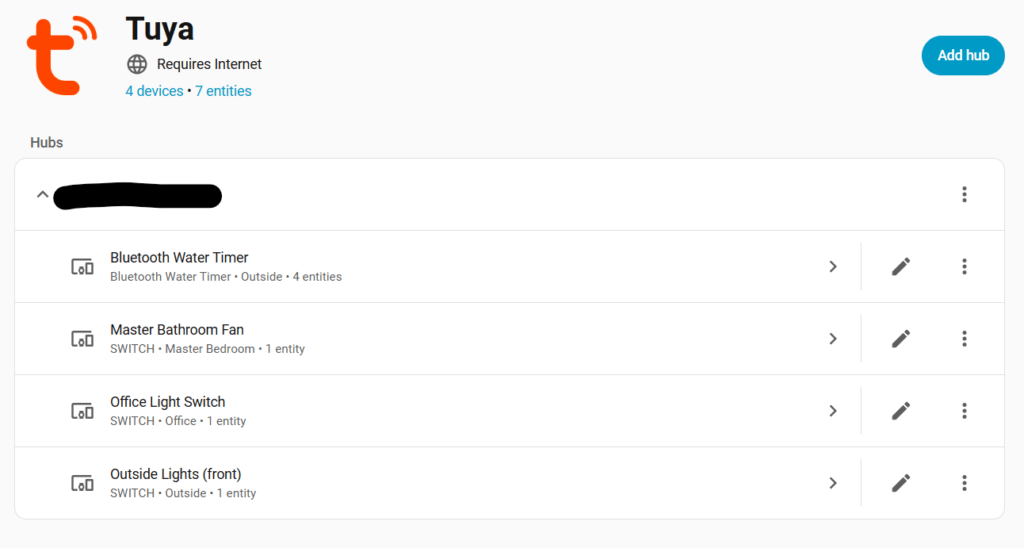
- Go to: Settings -> Devices & Services -> Tuya
- Click the 3 dots on the Hub that needs to be re-authenticated and choose Reload
- Click the Reconfigure button
- On your phone, open the SmartLife app
- Tap the + icon in the top right
- Tap Scan
- Scan the QR Code in Home Assistant with your phone
At this point things should be re-authenticated and you’re all set to go.

Resources
Resetting API Keys
Tuya only grants API for so long – a few months at a time. You’ll need to renew this for devices to continue to work. Navigating the Tuya platform can be a bit confusing at times, so here are the steps to take. An email should be sent with some guidance. But if not, this should get you on track.
- Login at: https://www.tuya.com/vas/user/service
- Under the My Services tab, click on the View Used Progress link for the IoT Core entry
- Click the Renewal button for entry where Service Item Name = IoT Core